
Live
A sales report shows 30% beside a bottle price. Did the price fall, or did someone apply the wrong number format? Before writing a formula, learn to distinguish what a cell stores from how it looks.
Outcome: navigate a workbook, enter a linked calculation and choose a display that preserves its meaning. Prerequisite: multiplication and the units covered in F01. Our fictional company, Northstar Bottles, sells bottles and accessories. The examples are original practice data, not company disclosures.
A workbook is the file. Sheets are the named tabs inside it. Columns use letters and rows use numbers, so C5 means column C, row 5. C5:C8 is the four-cell vertical range from C5 through C8, including both endpoints. The active cell receives your typing. The formula bar shows its stored value or formula.
Create a sheet called Sales practice. Enter these labels and values:
| Cell | Entry | Meaning |
|---|---|---|
| B3 | Units sold | Label |
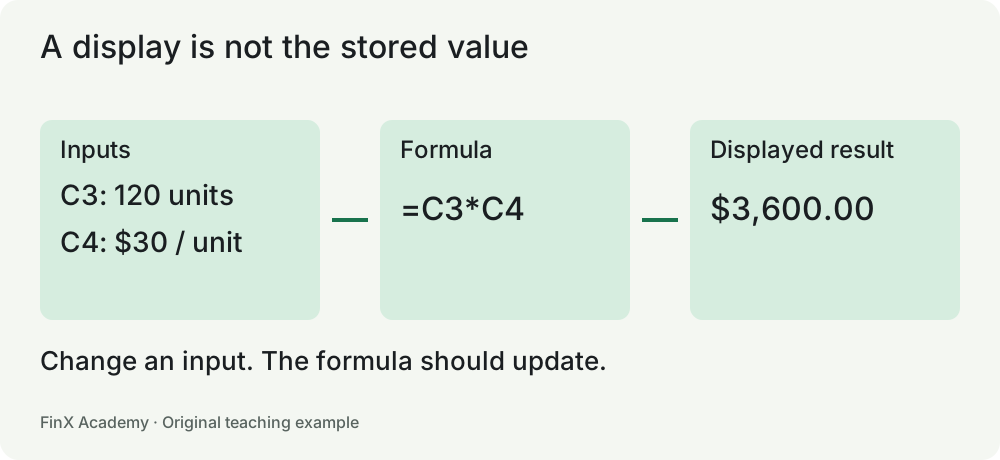
| C3 | 120 | Number of bottles |
| B4 | Price per bottle (USD) | Label |
| C4 | 30 | Dollars per bottle |
| B5 | Revenue (USD) | Label |
| C5 | =C3*C4 | Formula, returning 3,600 |
Click C5 and inspect the formula bar. You should see =C3*C4, even though the grid displays 3,600. Change C3 to 125. C5 should change to 3,750. Undo the change. A typed 3,600 would look right initially but would not respond to the new units. This changed-input check is your first formula audit.
Use the name box to select C5 directly. Select C3:C5, copy it, and practice pasting into a spare area. Undo afterward. Copying a formula and pasting its value are different actions: a value paste takes a snapshot and breaks the calculation link. Keep a source copy before experimenting with destructive edits.
Enter 0.125 in C7 and apply a percentage format with one decimal. The display becomes 12.5%; the underlying value remains 0.125. Entering 12.5 and then applying that format displays 1,250%. Formatting does not divide the stored number by 100.
Enter 12.345 in C8 and show two decimals. Excel displays 12.35, but a formula that refers to C8 still uses 12.345. Use ROUND only when the calculation itself needs a rounding rule, such as line-item invoice cents. Lesson 3 explains that distinction.
Identifiers are different from quantities. Product code 0012 may need to stay text so its leading zeros survive. A quantity of twelve should normally be numeric. Do not convert every text field to numbers just because it contains digits. A number stored as text may be ignored by a range sum or fail an exact lookup against a numeric key.
Use the keyboard for repeatable actions, but understand each action first. On Windows, Ctrl+C/Ctrl+V copy and paste, Ctrl+Z undoes, and Ctrl+arrow moves to a data-region edge. On Mac, use the corresponding menu command or shortcut shown in the application. Browser and operating-system shortcuts can intercept keys; a keyboard shortcut is not an assessed finance competency.
Keep one header row, readable column widths and explicit units. Freeze a long table's header when scrolling would hide it. A #### display can mean the column is too narrow; inspect the stored value before changing the data. Never make a report fit by removing its currency or period labels.
Build the small worksheet example, then use 80 bottles at $25. Predict the answer before changing the sheet. Inspect whether the output contains a formula. Next, display 0.075 as a percentage and 1,234.567 as dollars with two decimals.
Revenue is $2,000. The displays are 7.5% and $1,234.57. The stored amount in the last cell is still 1,234.567. If revenue does not update, check whether you pasted a value, entered the formula as text, or changed the wrong input.
Transfer: create the same calculation on a new sheet without copying the original. Explain which entries are labels, inputs and formulas, and why a screenshot cannot establish that the calculation updates.