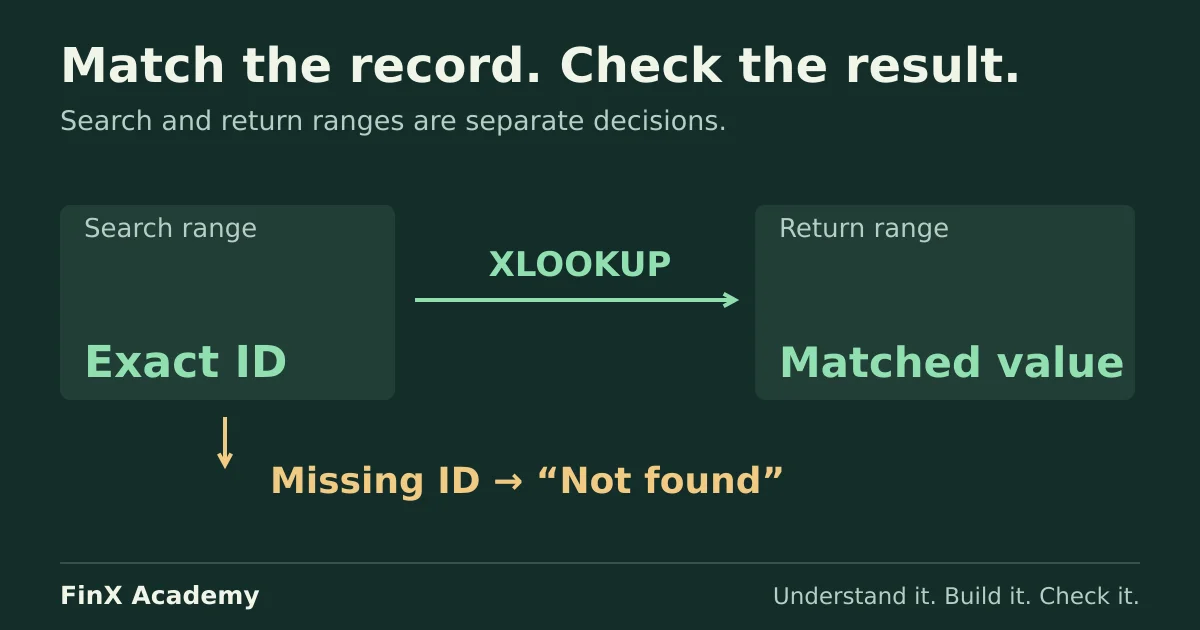
A useful lookup needs a clear matching rule and a deliberate response when the value is missing. Returning a number is not enough.
XLOOKUP finds a value in one range and returns the corresponding value from another. For finance work, that might mean finding a department’s budget, a company’s revenue or an assumption associated with a selected scenario.
If you are choosing a lookup for a shared workbook, the XLOOKUP vs INDEX MATCH comparison covers compatibility, exact-match defaults and a department-and-month budget lookup. The exercises here focus on practicing XLOOKUP itself.
The most useful way to learn it is to solve a small problem and check what happens when the data is imperfect. You can follow these exercises in an Excel version that supports XLOOKUP; check Microsoft’s function documentation for availability and options.
Set up a small practice table
Enter these fictional department budgets in A1:B5. Put the department to look up in D2.
| Department | Budget |
|---|---|
| Research | 120 |
| Operations | 240 |
| Sales | 180 |
| Finance | 90 |
The numbers are illustrative units. The two important ranges are A2:A5, which contains the names, and B2:B5, which contains the corresponding budgets.
For the first exercise, enter Sales in D2. Before writing a formula, identify the answer you expect: 180. This gives you a simple check, rather than asking you to trust the formula because it runs.
Exercise 1: retrieve an exact match
Enter this in E2:
=XLOOKUP(D2,$A$2:$A$5,$B$2:$B$5)The first argument is the value to find. The second is the range to search. The third is the range from which to return the matching value.
XLOOKUP uses an exact match by default. With Sales in D2, the result is 180. Change D2 to Finance and it should return 90.
The lookup and return ranges represent the same records and must align. If you accidentally use B3:B6 as the return range, a match can return the wrong department’s budget even though the ranges have the same number of cells.
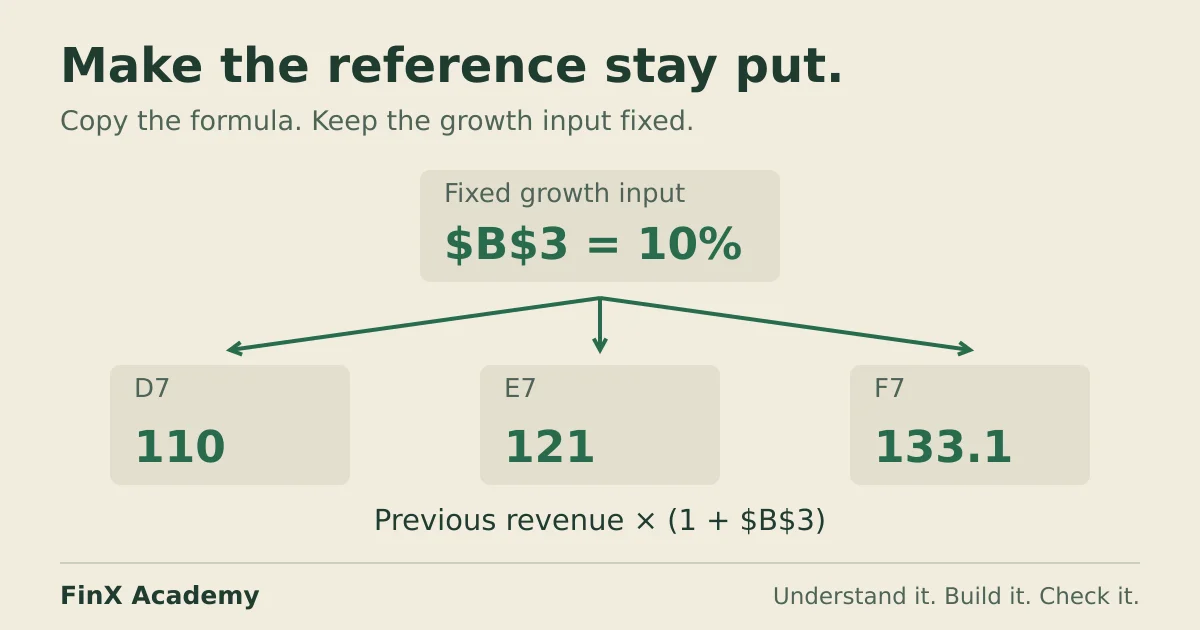
The dollar signs keep the table ranges fixed when the formula is copied. See the reference guide if you are unsure which parts should move.
Exercise 2: handle a missing department
Change D2 to Legal. The table has no Legal record, so the first formula returns #N/A.
Choose a response that makes the missing data visible:
=XLOOKUP(D2,$A$2:$A$5,$B$2:$B$5,"Department not found")The fourth argument handles a missing match. It does not make the missing budget zero.
Returning zero can be appropriate in a deliberately designed model, but it can also hide an incomplete data source. A department with a genuine zero budget and a department absent from the table are different situations. Decide how downstream calculations should treat each one.
Also check spelling, spaces and data types before concluding that a record is missing. A formula cannot infer that two differently written labels were intended to represent the same department.
Exercise 3: decide what a repeated record means
Suppose you add a second Sales record at the bottom of the table with a budget of 210. Extend the lookup ranges to row 6.
The default search returns the first matching record. If the records are deliberately ordered so that the latest update is at the bottom, a reverse search can retrieve the last match:
=XLOOKUP(D2,$A$2:$A$6,$B$2:$B$6,"Department not found",0,-1)Here, 0 specifies exact matching and -1 searches from the last record towards the first. With Sales selected, the answer is 210.
Last in the table is not automatically latest in time. This approach only makes sense if the record order is an intentional part of the data contract. If dates determine which record is current, check those dates and design the lookup around that rule.
Check your answers and continue
Your checks should now include:
- Sales returns 180 in the original table.
- Finance returns 90.
- Legal produces a visible missing-record message.
- The deliberately ordered, extended table returns the last Sales record when reverse search is selected.
Continue with the VLOOKUP-to-XLOOKUP practice path for a sequence of lookup exercises with answers checked in your browser. The path shows the free exercises and the lessons requiring paid access.
For a broader check, take the free Excel skills test. Its eight spreadsheet tasks include lookups, SUMIFS, IF, references and data cleaning; it is not a complete XLOOKUP assessment.
Try the XLOOKUP example
Change D2 from Finance to Sales, then Legal. E2 should return 180, then “Not found”. The reverse search in E5 finds the last Sales record: 210.
An editable example using the same spreadsheet as FinX lessons. Reset or close it to start again. Your changes are not saved.
Continue with guided practice
Build on this guide with spreadsheet exercises on formulas, lookups and financial functions. Explore the syllabus and start with a free lesson.
Excel for Finance course